Please follow some of the common issues/errors with Scanner Installation and Scanner usage below. If you are still having issues please reach out to CLX Customer Success at (314) 995-9959 or customerservice@clxsystem.com
-
Always make sure the scanner is plugged in and has battery life.
-
If you are unable to download the install software:
-
Make sure you are logged into the computer you are using as Administrator
-
Have your IT team check Firewall settings to download the scanner software
-
The distributors scanner software may be still in and running and will need to be hard shut down from task manager
-
-
If when uploading into CLX and the screen blinks or says "looks like something went wrong" typically this is a bad UPC that was uploaded.
-
Make sure you are not scanning the incorrect barcode on the box (there can be several), you are not scanning revenue product, or you are not scanning a discontinued lens.
-
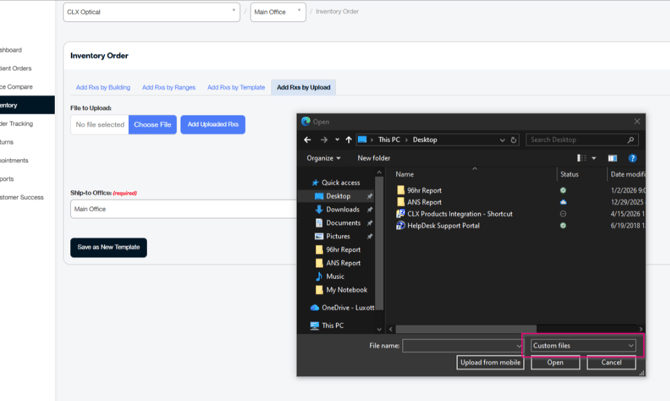
Check the barcodes.csv file in scanned trials folder file to see which UPC does not follow the correct format. (Format should match screen capture on #9).
-
This could also be caused by using the web browser Internet Explorer. Please use CLX in FireFox or Google Chrome.
-
-
If you are getting the error "Line count invalid": be sure to select Upload and Add RX’s before selecting Save for Later or Submit Order.
-
If scanner does not beep when scanning: The scanner is in silent mode and will will need to be restarted by pressing and holding down the top button until it beeps. This is a hard restart for the scanner. This process may need to be repeated several times before it starts beeping.
-
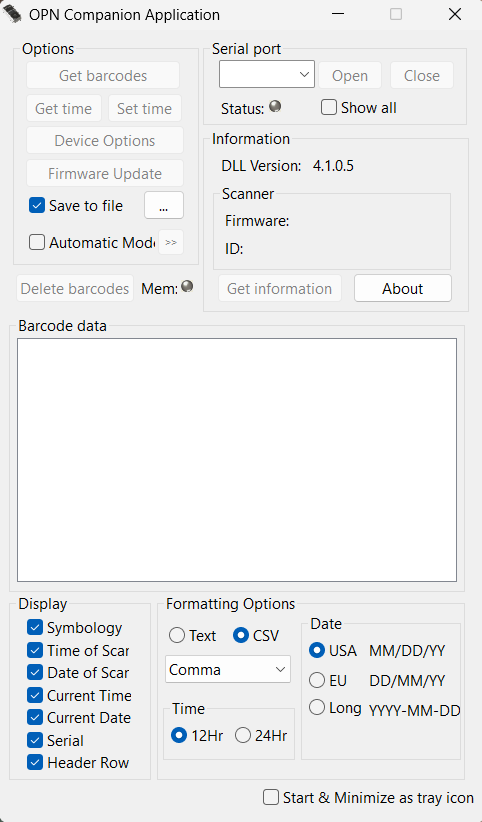
If you are receiving duplicate orders: This is a result of not deleting from both the barcodes.csv file in scanned trials folder and from scanner itself. This must be done every time the trials are uploaded. (The barcodes.csv file gets created every time you select get barcodes on the OPN)
-
If the scanner screen is grayed out and there is no information in the serial port (com3) this is likely a driver issue.
-
Go to devices and look for the barcode driver. This may say unavailable. If that is the case go to Google on the practices computer and search OPN200x Driver and download the driver to the practices computer.
-
- If the barcodes.csv file is not appearing, save the file as a different type.
-
Make sure the scanner has the exact same configurations as the screen capture below:
-
If you are getting a Beta error when uploading files. Delete all files off OPN by selecting Delete Barcodes > Select CSV under Formatting Options > Get Barcodes> Upload into CLX.