
How to use CLX Price Compare
CLX Price Compare is designed to help you optimize annual supply sales in the office. To access the feature, log into your CLX account and select your Office Location.
*NEW* Price Compare Admin:
Note: this is now where you will pre-setup how you would like Price Compare to display for your patients
1. Navigate to Setup > General Setup > Price Compare Admin

2. Check and Uncheck your preferred preferences and competitors to show in the Price Compare tool.
-
-
If Auto Apply Manufacturer Rebates is checked, rebates will continue to be automatically applied just like before. The Discounts tab will be selected, showing the applied rebate.
-
If this box is not checked, after selecting your products and clicking Update Report, the Discounts tab will open, showing available manufacturer rebates—but none will be applied until you choose one.
-
- Checking a Competitor, will then only display which competitors' pricing you would like to display in the Price Compare tool.
- Check Show Higher Prices Only, if you would like to only show competitors with a higher price than you do (with insurance, discounts and rebates factored in).
-

How to get to Price Compare in CLX:
- At your location level, Select Price Compare on the left navigation menu.

How to use Price Compare:
- Select the patient's product from the drop down menu.
- Select the blue box containing arrows (>>) if the same product is being fit for both eyes.
- Select Update Report. The CLX System will direct you automatically to the discounts tab.
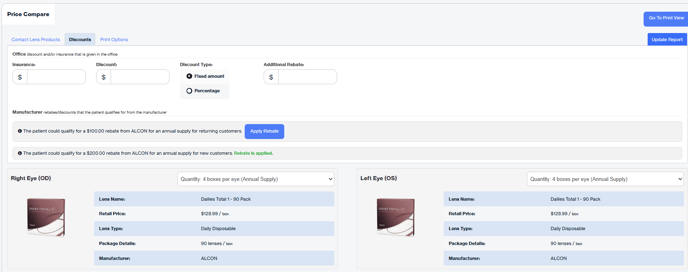
- You can enter in any insurance allotment the patient has available as well as any additional discounts you offer under the Discounts tab, and then select Update Report.
- If the product has a New Customer and a Returning Customer rebate, you are able to select which rebate you would like to apply by selecting the green 'Apply Rebate' button. You can also select a discount in dollar format or percentage.
- Select Go to Print View to print a copy of the report.