
Create a new organization from Vision(X) Settings menus
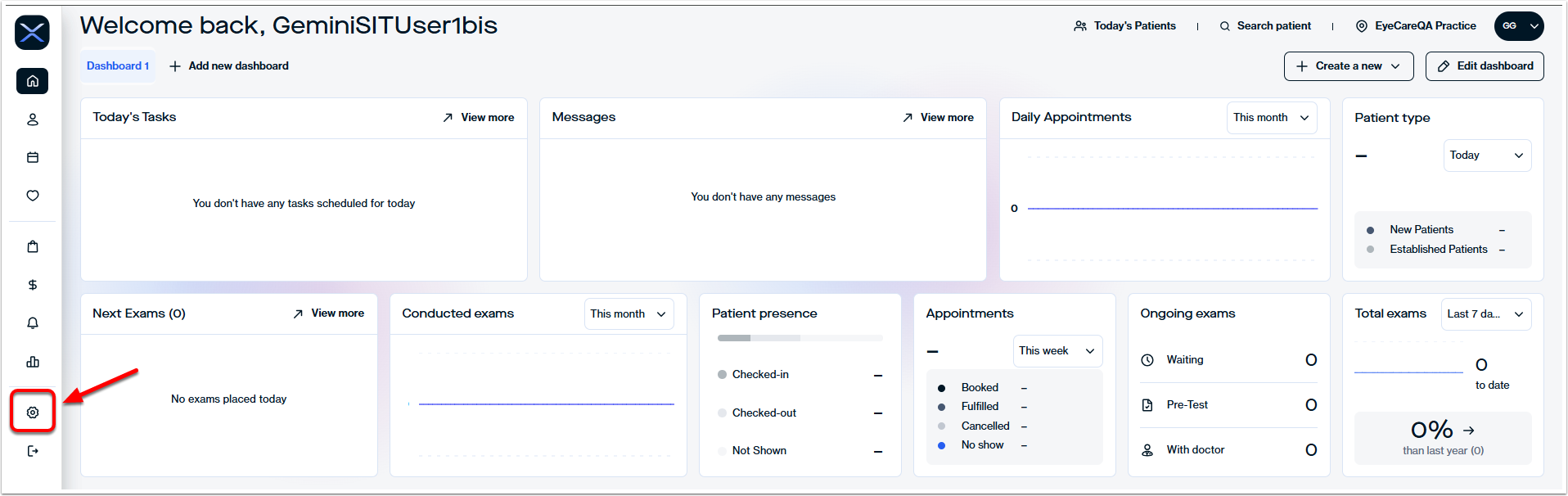
Select Setup > Organization, then click the New Organization button:

The Create New Organization menu begins with Legal Information. Complete all required fields, each of which is marked with an asterisk. (Non-required fields are not marked by an asterisk, and can be completed at a later time.) Be sure to assign the new organization a unique number and name in the "Name" field to help make it more easily identifiable:
Legal Information

Legal Contact Person
Next, scroll further down the Create New Organization menu to find the Legal Contact Person section. Enter information for all required fields (as indicated by asterisk):

Module Management
Continue scrolling down to find the Module Management section. Select any modules that you would like to activate for the new Vision(X) organization using the Active/Inactive toggles provided:

Organization Details
Next, enter the practice's public facing information, such as phone and fax line numbers, e-mail address, website URL. If these details are the same as the ones you already entered in the Legal Information section, you can use the "Same Address as Legal Information" toggle to populate that info here:

Additional non-required information, including NPI, TaxID, and organization logo can all be added at this stage, or at a later time. When ready, click SAVE:

You will receive a completion message when the new organization is successfully saved:
